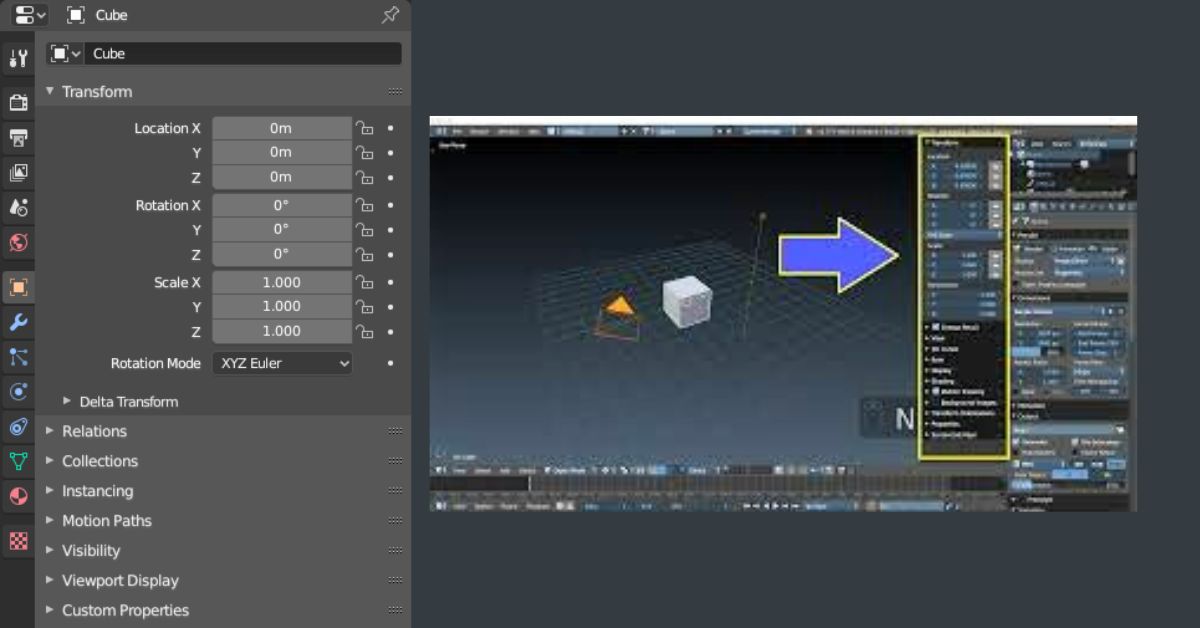
If you’re starting your 3D journey and wondering is Blender 3D good for beginners, the first challenge is understanding its UI, navigation controls, scale and rotate tools, and how to show shortcut keys on screen while working.
What You Will Learn (Quick Overview)
- Blender UI layout
- Moving inside the 3D viewport
- How to Scale, Rotate, and Transform objects
- How to enable the Screencast Keys Add-on
- How to follow shortcuts like a pro
- Beginner-friendly tips to avoid mistakes
- Practice tasks to build real skills
Is Blender 3D Good for Beginners? A Clear Beginner Explanation
Blender is a free, open-source 3D software used for:
- 3D modeling
- Animation
- VFX
- Motion graphics
- Sculpting
- Rendering
- Game assets
Professionals use it for YouTube videos, short films, and even Netflix shows.
The best part?
It’s completely free for lifetime.
Blender UI Basics Explained (Beginner-Friendly)
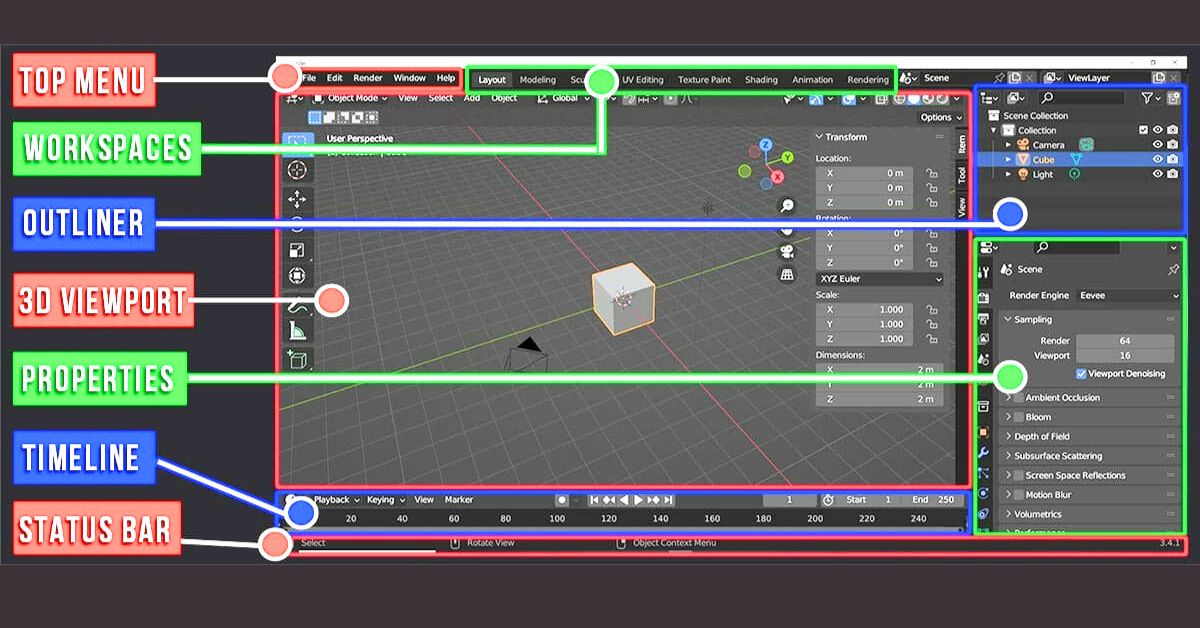
When you open Blender for the first time, the screen looks overwhelming but trust me — it’s actually very simple once you understand these 4 main areas.
3D Viewport – Your Main Workspace
Here you create, move, scale, rotate, and design objects.You will spend 80% of your time here
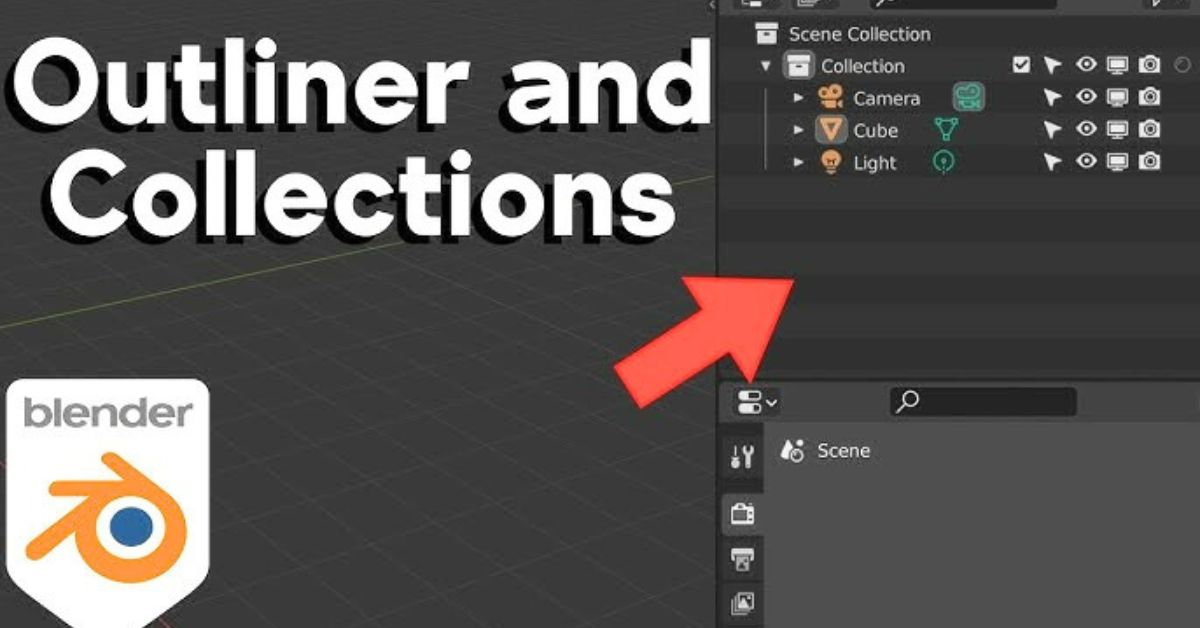
Outliner – Your Object List
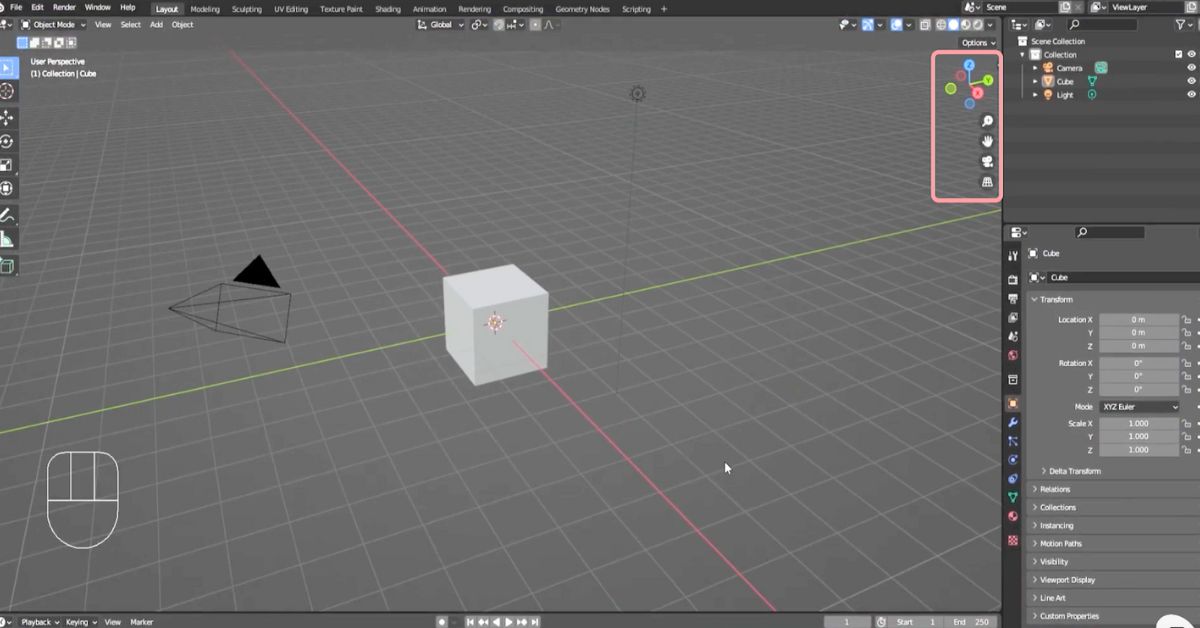
Essential Navigation Controls (Super Important for Beginners)
Action | Shortcut |
Rotate View | Middle Mouse Button (MMB) |
Pan View | Shift + MMB |
Zoom In/Out | Scroll Wheel |
Focus on Object | Numpad . |
Switch Views | Numpad 1 (Front), 3 (Side), 7 (Top) |
Properties Panel – All Settings in One Place
This is where you adjust materials, modifiers, lights, object settings, etc.
Timeline – For Animation
Even if you’re not animating right now, it’s good to know the timeline exists.
How to Use Scale & Rotate Tools (The Core of 3D Modeling)
Let’s start with the default Cube.
Scale Tool (Shortcut: S)
Scaling means making an object bigger or smaller.
How to use:
- Select cube
- Press S
- Move mouse → scale uniformly
- Left-click to confirm
Scale on a single axis
S + X → scale on X
S + Y → scale on Y
S + Z → scale on Z
Rotate Tool (Shortcut: R)
Rotation helps you turn objects in 3D.
Global rotation – Press R + mouse drag
Precise rotation using numbers :
Example: rotate cube by 45 degrees:
R → Z → 45 → Enter
Install & Use Screencast Keys Add-on
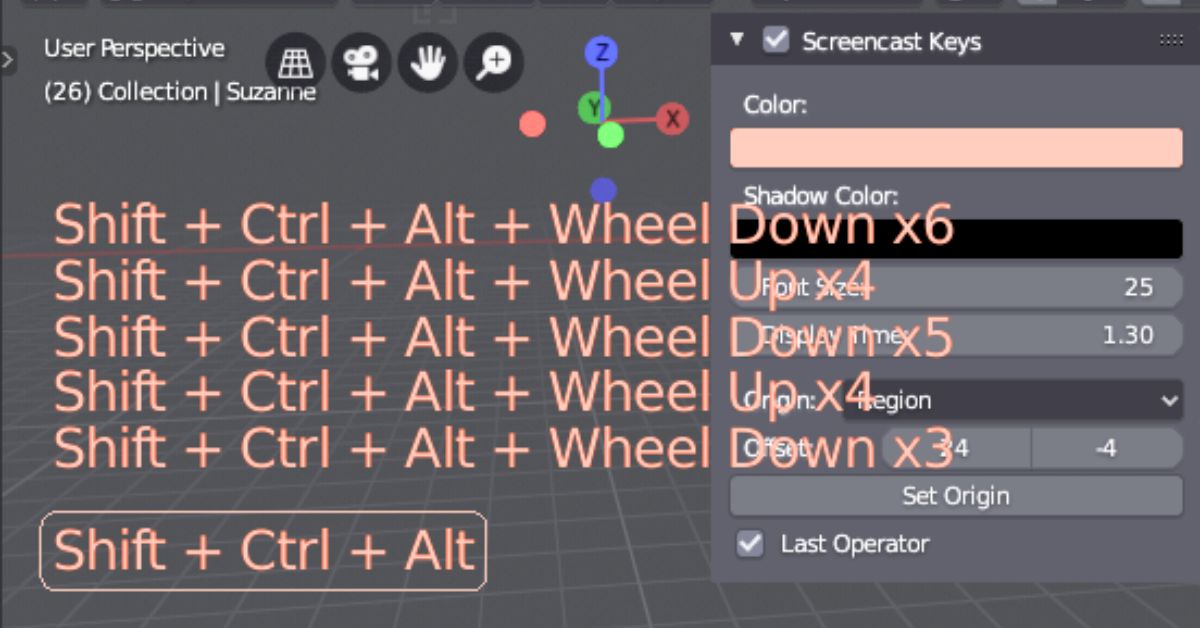
Screencast Keys shows your keyboard & mouse actions on-screen. Great for tutorials, YouTube videos, or learning shortcut habits.
- Go to Edit → Preferences
- Click Add-ons
- Search: 3D View: Screencast Keys
- Tick ✔ to enable
- Press N → Sidebar opens
- Find View Tab → Screencast Keys Panel
- Click Start Display
Best Free Resources to Learn Blender (Updated 2025)
FAQs